

Grant Us Access to Your Google Ads Account
Getting us linked to your Microsoft Advertising account is quick and simple. We use a Manager Account, so you stay in full control. We send a request, you approve it, done.
What you’ll need
- Access to your Microsoft Advertising account (you need to be a Super Admin)
- Your Microsoft Ads Account Number (we’ll show you where it is)
About 5 minutes
Step 1: Find Your Account Number

Your Account Number is a short code with letters and numbers. Here’s how to find it:
- Sign in to Microsoft Advertising.
- Click Tools in the top navigation bar.
- Click Preferences, then Account Settings.
- Your Account Number is right there on the page.
Another way to find it
Click your account name in the top-left of the page. A dropdown pops up showing all your accounts with their Account Numbers listed next to them.
Account Number vs Customer ID
Microsoft shows two different IDs, which can be confusing. We need your Account Number (the short code for your specific ad account), not your Customer ID. If you’re not sure which is which, just send us both and we’ll sort it out.
Step 2: Send Us Your Account Number
Send it to your GeekyTech account manager however works for you.
Once we’ve got it, we’ll fire off an access request from our Manager Account (GeekyTech, G1100058EK).
Step 3: Approve Our Access Request
You can approve it two ways:
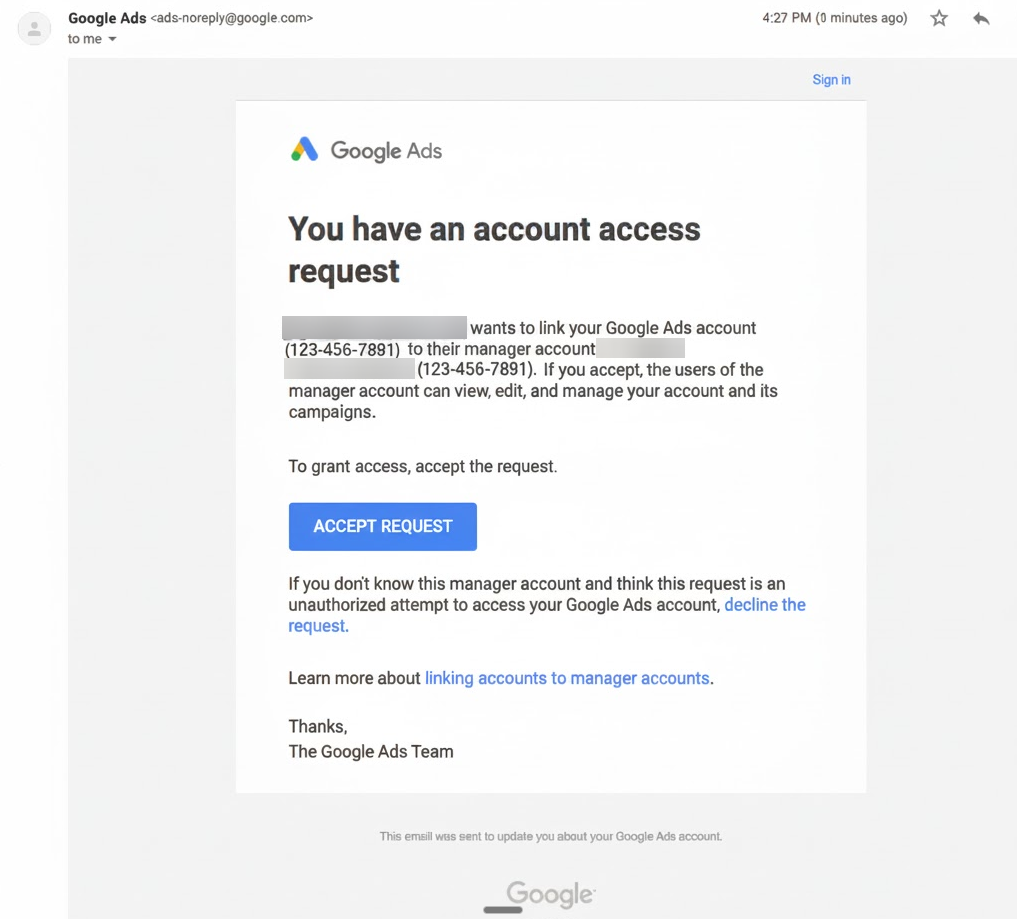
Option A: Accept via email
Microsoft will send you a notification email about the request. Just follow the link to accept.
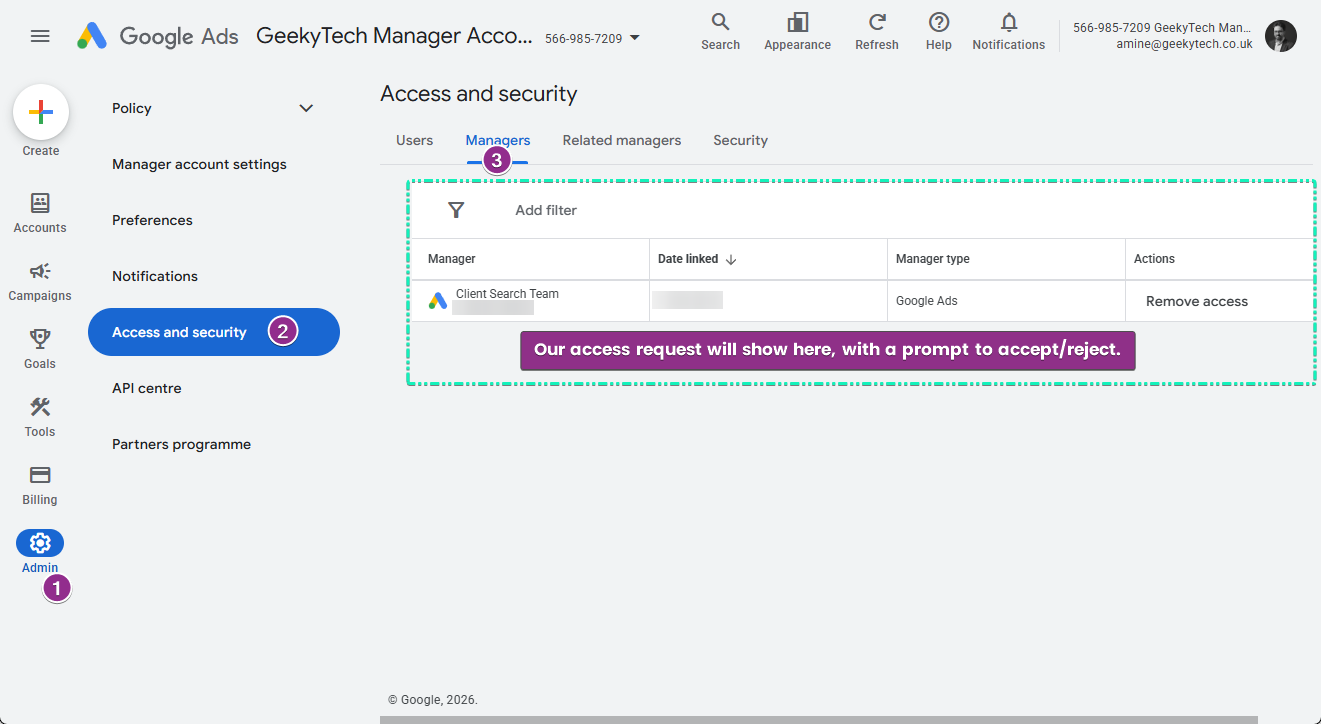
Option B: Accept in Microsoft Advertising
- Sign in to Microsoft Advertising.
- Click Tools in the top navigation.
- Click All accounts, then Accounts summary in the left menu.
- Click the Requests tab at the top.
- Click Received.
- Find the request from GeekyTech and click Accept request.
Interface might look a bit different
Microsoft has updated their layout recently. If you can’t find the above, try: click the gear icon in the top-right corner, then Accounts & Billing, then the Requests tab.
Don’t leave it too long
Pending requests expire after 30 days. If it expires, just let us know and we’ll send a fresh one.
What happens next?
Once you’ve accepted:
- We can start managing your campaigns, setting up conversion tracking (UET tags), and optimising your ads.
- You’re still the account owner. You can remove our access anytime.
- Your billing stays with you. Your payment settings stay under your control.
- We’ll confirm everything’s connected and ready to go.
Why do we need Super Admin access?
We ask for Super Admin so we can:
- Create and manage ad campaigns
- Set up and manage UET tags and conversion goals (this is how we track results)
- Share UET tags across accounts if needed
- Access audience insights and keyword data
- Update account settings as needed
Why Super Admin and not Standard?
Microsoft restricts full UET tag management (creating, editing, and sharing conversion tracking tags) to Super Admin users. Standard access lets us manage campaigns but limits what we can do with conversion tracking, which is pretty important for measuring how your ads are performing.
Microsoft Ads: Common Issues
Running into trouble? Here are the most common things that come up.
"I can't find my Account Number"
Try one of these:
- Tools method: Click Tools (top nav) > Preferences > Account Settings. Your Account Number is on that page.
- Account dropdown: Click your account name in the top-left. A dropdown shows all your accounts with their Account Numbers.
- Gear icon: Click the gear icon (top-right) > Accounts & Billing. Your Account Number is in the accounts list.
Account Number vs Customer ID
We need your Account Number (the short code for your specific ad account), not your Customer ID (which is a different identifier). If you’re not sure which is which, send us both and we’ll figure it out.
"I don't see a pending link request"
A few things to check:
- Check your email. Microsoft sends a notification when we request access. Look in your inbox and junk/spam folders.
- Give it a minute. Requests can take a few minutes. Try refreshing.
- Wrong account. If you manage multiple accounts, check you’re in the right one.
- It might have expired. Pending requests expire after 30 days. Let us know and we’ll send a new one.
- You might not have the right permissions. Only Super Admin users can see and approve manager account requests.
Where to look
Current interface: Tools > All accounts > Accounts summary > Requests tab > Received. Older interface: Gear icon (top-right) > Accounts & Billing > Requests tab.
"It says my account isn't available for agency management"
This usually means one of two things:
- Your account is already linked to another agency. Microsoft only allows one agency link at a time. If you’re currently with another agency, that link needs to be removed first. Get in touch with them or contact Microsoft Advertising support.
- Your account is a manager/agency account itself. Two agency-type accounts can’t link together. Let us know and we’ll find the right solution.
"I don't have a Microsoft Ads account"
No problem, this is really common especially if you’ve only done Google Ads before. A few options:
- We can create one for you under our Manager Account (quickest way).
- You can create one yourself at ads.microsoft.com. Just sign in with your Microsoft account and follow the setup.
- Import from Google Ads: during signup, Microsoft lets you import your existing Google Ads campaigns, which speeds things up.
"The page isn't loading right / I can't find the right section"
Microsoft has updated their interface a few times, so things might look different. Try both:
- New interface: Use the Tools menu in the top nav bar.
- Older interface: Look for the gear icon in the top-right corner.
If things still aren’t working, try disabling any ad blockers, clearing your browser cache, or opening an incognito/private window.
"I'm signed in with the wrong Microsoft account"
Your Microsoft Ads account is tied to a specific Microsoft account (could be a personal Outlook/Hotmail email or a work account). Make sure you’re signed in with the same one that was used to create your advertising account.
Not sure which one it is? Search your email for the original Microsoft Advertising signup confirmation.
"I accidentally declined the request"
No worries. Let us know and we’ll send a new one.
"I want to remove your access later"
You can do this anytime:
- Go to Tools > All accounts > Accounts summary.
- Find GeekyTech in your linked accounts.
- Click Unlink or Remove.
Still stuck?
Reach out to your GeekyTech account manager. You can also contact Microsoft Advertising support directly at 0800-518-5689.