

Grant Us Access to Your Google Ads Account
Getting us set up on your Google Ads account is quick and easy. We use a Manager Account (sometimes called an MCC), so you stay in full control the whole time. We send a request, you hit accept, and we’re good to go.
What you’ll need
- Access to your Google Ads account (you need to be an Admin)
- Your Google Ads Customer ID (we’ll show you where to find it)
- About 5 minutes
Step 1: Find Your Google Ads Customer ID

Your Customer ID is a 10-digit number that looks like XXX-XXX-XXXX. Here’s how to find it:
- Sign in to Google Ads.
- Look at the top-right corner of the screen, next to your account name and email. Your Customer ID is right there.
TIP
It looks something like 123-456-7890. It’s not your email address or Google account name. If you have multiple accounts, just make sure you’re looking at the right one.Step 2: Send Us Your Customer ID
Send it over to your GeekyTech account manager however works best for you (email, Slack, carrier pigeon).
Once we have it, we’ll send you an access request from our Manager Account (566-985-7209).
Step 3: Approve Our Access Request
After we send the request, you can approve it in two ways:
Option A: Accept via email (easiest)
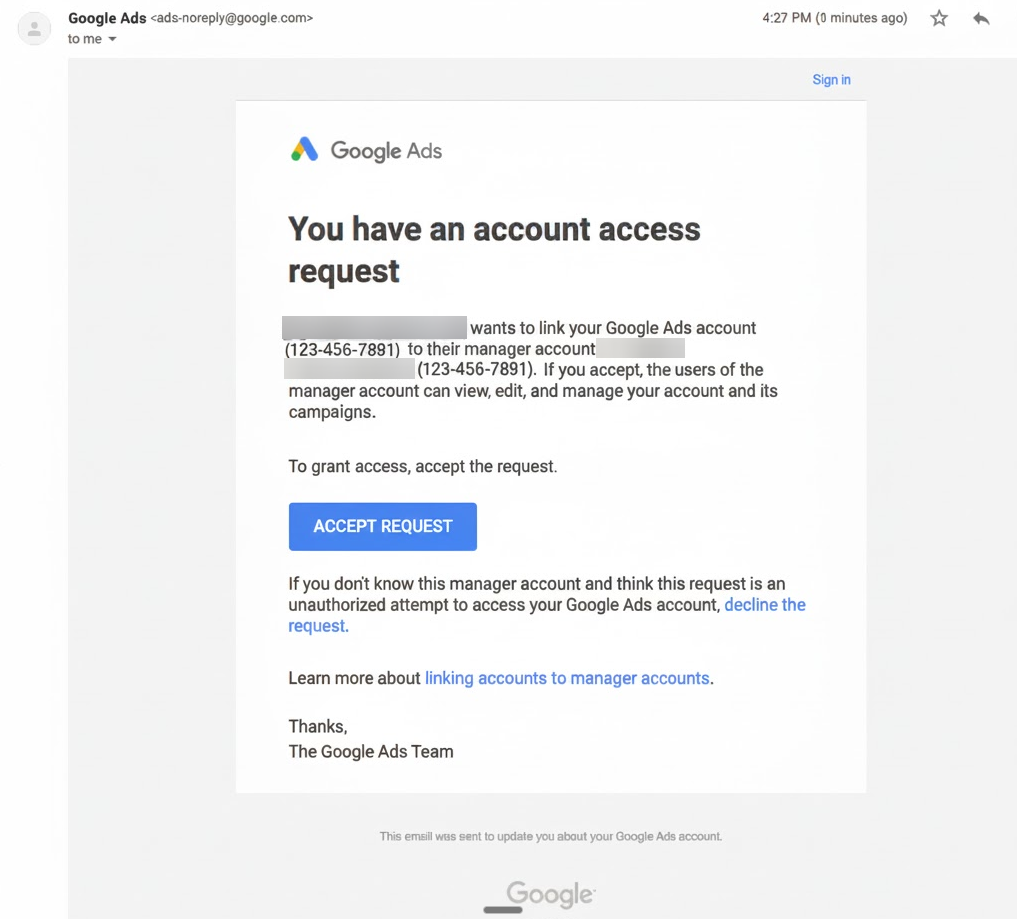
Google will email your account’s admin address with a link. Just click “Accept Request” in the email and you’re done.
Check your spam folder
Google notification emails sometimes land in Spam or Promotions. Have a quick look there if you don’t see it in your inbox.
Option B: Accept in Google Ads
- Sign in to Google Ads.
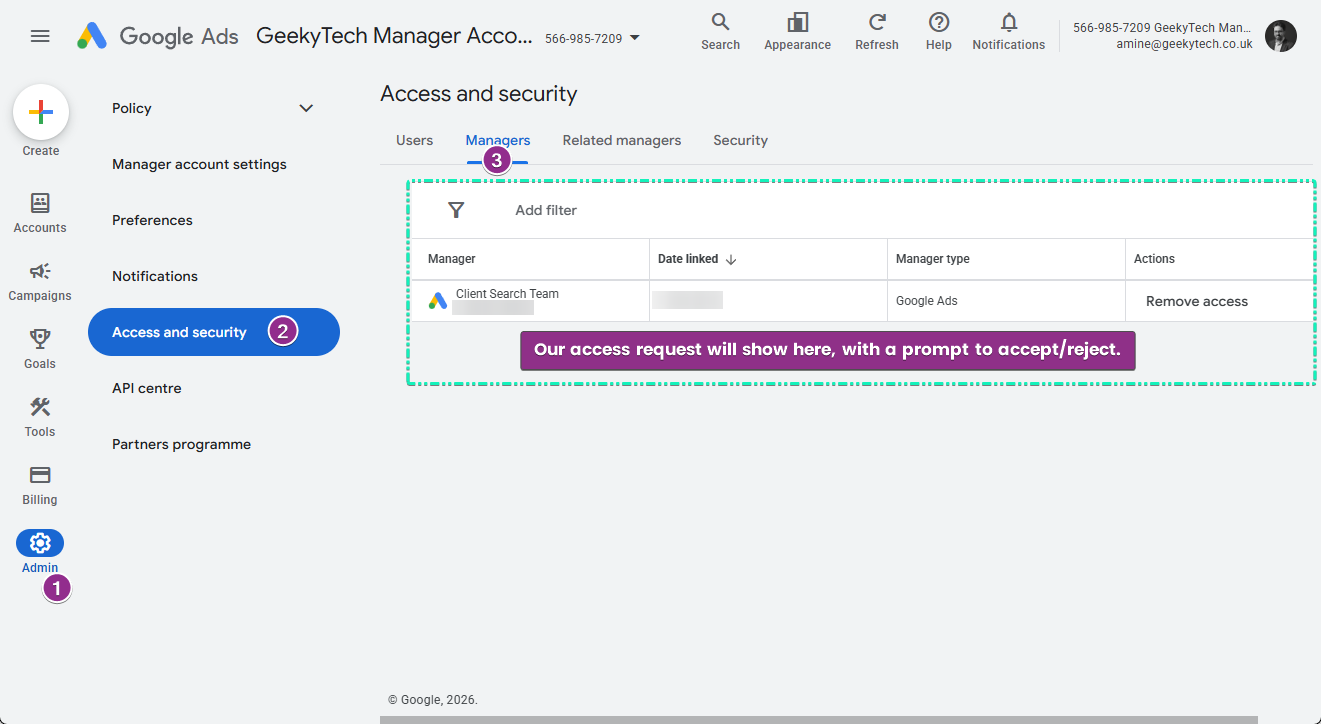
- Click the Admin icon in the left-hand menu (looks like a cog/gear).
- Click Access and security.
- Click the Managers tab at the top.
- Under Link requests, you should see a pending request from GeekyTech Manager Account.
- Click Accept.
Your Google Ads might look a bit different
Google has been updating the interface. If you can’t find the Admin icon in the left menu, look for the Tools & Settings icon (spanner/wrench) in the top menu instead, then go to Setup > Access and security > Managers tab.
What happens next?
Once you’ve accepted:
- We can start managing your campaigns, setting up conversion tracking, and optimising your ads.
- You’re still the account owner. You can remove our access whenever you like.
- Your billing stays with you. Your payment methods and billing are completely separate.
- We’ll drop you a message to confirm everything’s connected.
Why do we need Admin access?
We ask for Admin so we can:
- Create and manage your ad campaigns
- Set up conversion tracking (this is how we measure what’s working)
- Link your Google Analytics to Google Ads
- Access audience and keyword data
- Update account settings when needed
Why not Standard?
Standard access covers campaign management, but we need Admin specifically to link Google Analytics and manage integrations properly. You can always change our access level later if you’d prefer.
Google Ads: Common Issues
Running into trouble? Here are the things that come up most often, with quick fixes.
"I can't find my Customer ID"
Your Customer ID is a 10-digit number like XXX-XXX-XXXX. It shows up in the top-right corner of your Google Ads dashboard, right next to your account name.
If you’ve got multiple accounts, make sure you’ve picked the right one first.
TIP
Your Customer ID was also in the original email you got when your Google Ads account was created. Try searching your inbox for “Google Ads” or “Customer ID”.
"I don't see a pending access request"
A few things to check:
- Look in your email first. Google sends a notification when we request access. Check your inbox plus your Spam and Promotions folders.
- Give it a minute. Requests can take a few minutes to show up. Try refreshing the page.
- Wrong account. If you have more than one Google Ads account, make sure you’re in the right one.
- It might have expired. Pending requests expire after 30 days. Let us know and we’ll send a new one.
- You might not be an Admin. Only Admin users can see and approve link requests. If someone else set up the account, they might need to do this bit.
Where to look in Google Ads
Click the Admin icon (cog/gear) in the left menu, then Access and security, then the Managers tab. Pending requests show up under “Link requests”.
Different layout? Try the Tools & Settings icon (spanner) in the top menu, then Setup > Access and security > Managers tab.
"I don't have a Google Ads account"
No worries, this is really common. Just let your GeekyTech account manager know and we can either:
- Create one for you from our Manager Account (quickest option, we handle everything).
- Walk you through creating one yourself at ads.google.com if you’d rather do it that way.
Heads up for brand new accounts
Freshly created accounts can sometimes take up to 7 days before they can be linked to our Manager Account. If we hit an “account not found” error, we just need to wait a few days.
"The Google Ads interface looks different from the instructions"
Google has been rolling out a new design, so your screen might not match exactly. The key things to look for:
- New design: Admin icon (cog/gear) in the left menu > Access and security > Managers tab
- Older design: Tools & Settings icon (spanner) in the top menu > Setup > Access and security > Managers tab
You can also switch back to the old layout: look for “Appearance” in your settings and pick “Use Previous Design”.
"I have multiple Google Ads accounts"
Just make sure you send us the Customer ID for the specific account you want us to manage. You can see which account you’re in by checking the Customer ID in the top-right corner.
"I accidentally declined the request"
No problem at all. Just let us know and we’ll send another one.
"Someone else manages my Google Ads"
If another person or agency is currently looking after your account:
- Check with them about who has Admin access.
- Make sure you’ve got Admin access yourself.
- Once you do, you can approve our request.
Not sure about the current setup? We can help you figure it out.
"I want to remove your access later"
You can do this anytime:
- Click the Admin icon (cog/gear) in the left menu.
- Click Access and security.
- Go to the Managers tab.
- Find GeekyTech Manager Account.
- Click Unlink.
Still stuck?
Just reach out to your GeekyTech account manager. No question is too small.